
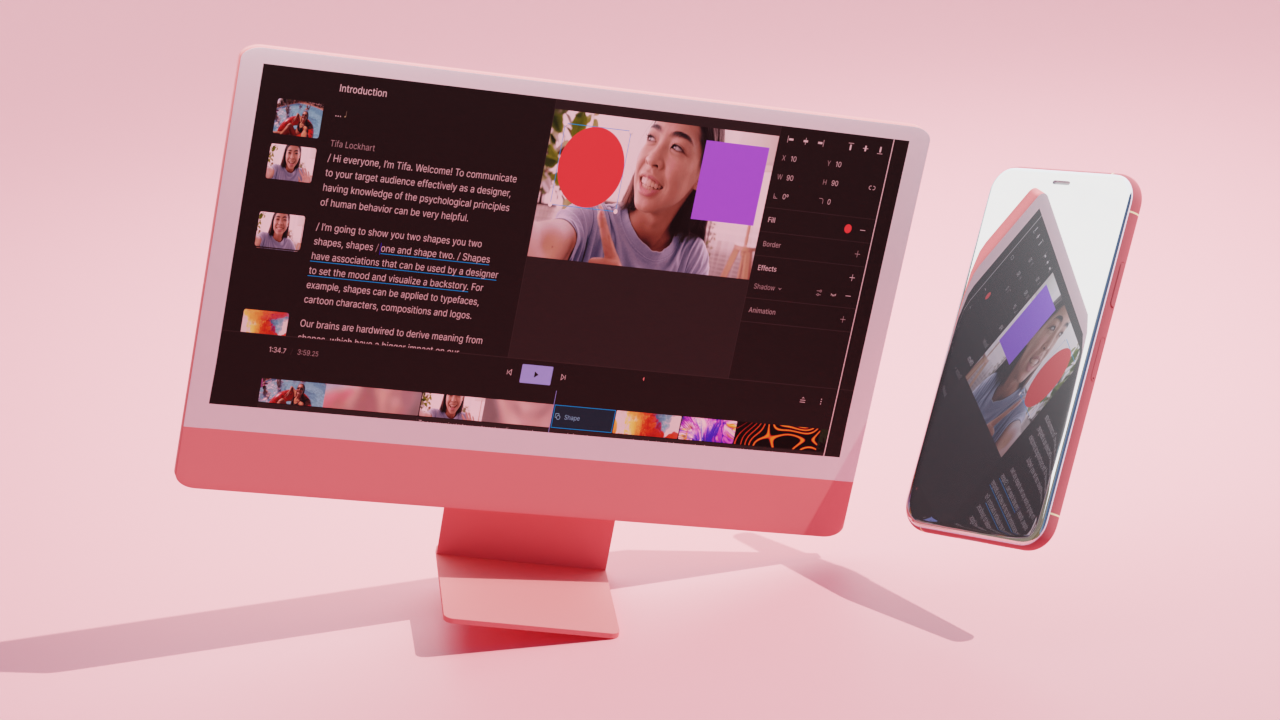
Want to make your videos more fun and shareable?
GIFs are a great way to capture attention online. They are short, looping, and perfect for expressing emotions or reactions. Turning a video into a GIF can make your content stand out.
You don’t need fancy software or complicated skills to start. With a few simple steps, you can create GIFs that are smooth, colorful, and eye-catching.
Let’s transform your everyday videos into engaging visual magic that grabs attention instantly.
Pick the Best Clip
Choosing the right clip is the first step in creating a great GIF. Look for moments that are exciting, funny, or visually interesting. Short clips with clear action work best because they keep viewers engaged.
If your video is in MP4 format, you can convert it using an MP4 to GIF tool. This allows you to take the part you want and turn it into a looping animation. You do not need to convert the entire video, only the section that stands out.
Consider the timing of the clip. A few seconds with strong motion or emotion make a better GIF than a long, slow segment. The goal is to capture attention quickly and hold it.
Focus on the visual details. A clear subject, bright colors, and movement make your clip more eye-catching.
Trim Unnecessary Footage
After selecting the clip, remove any extra frames that do not add value. Trimming helps make the GIF more focused and keeps the file size smaller. Long clips can be distracting or make the loop feel awkward.
Use simple editing tools to cut the beginning and end of your clip. Only keep the frames that show the key action or emotion. This makes the GIF smooth and engaging.
Trimming also makes it easier to loop your GIF later. Unnecessary frames can create pauses or jumps that make the animation look unprofessional. Clean clips make a GIF more enjoyable to watch.
Check the flow of the trimmed clip. Make sure the action moves naturally and the timing feels right. A well-trimmed clip will make your GIF more dynamic and effective.
Optimize Frame Rate
Frame rate determines how smooth your GIF appears. A higher frame rate shows motion more clearly but increases the file size. A lower frame rate can make the GIF look choppy.
Find a balance that keeps motion smooth while keeping the file size manageable. Most GIFs work well between 15 and 24 frames per second. This creates smooth movement without slowing loading times.
Check the type of movement in your clip. Fast action may need a higher frame rate, while slower movement works fine with fewer frames. Adjusting the frame rate helps the GIF feel natural.
Many online tools allow you to set the frame rate when converting MP4 to GIF. Testing different rates helps you find the right balance. A smooth GIF keeps viewers watching.
Add Bright Colors
Bright colors make GIFs more attention-grabbing. Increasing brightness, contrast, or saturation can make the visual elements pop. A colorful GIF is easier to notice in feeds or messages.
Adjust colors carefully to keep the image clear. Too much brightness can wash out details, while subtle changes enhance visibility. Proper color adjustments make the GIF visually appealing.
Some editing apps allow you to apply filters that enhance the overall look. Choose filters that highlight the subject and make motion more noticeable. Bright colors also help text and effects stand out.
Good color adjustments make your GIF more professional. Viewers are more likely to watch and share GIFs that are vivid and clear. Proper colors can turn a simple clip into a visually striking GIF.
Include Text or Captions
Adding text or captions can make your GIF more understandable. Short phrases emphasize the message or highlight a reaction. Captions make GIFs easier to use in social media or messages.
Keep the text clear and readable. Use simple fonts and contrasting colors so the text stands out from the background. Avoid overcrowding the image with too many words.
Place captions where they do not block the main action. The goal is to enhance the GIF, not distract from the motion. Well-placed text adds context and personality.
Animated text can also add fun to your GIF. Simple movements or fades can make the caption more engaging. Text helps the GIF communicate quickly and effectively.
Apply Fun Effects
Effects can make your GIF more dynamic. Adding filters, stickers, or animations draws attention to the main action. Effects also give the GIF a unique style or mood.
Use effects sparingly. Too many can distract from the core motion or message. Choose effects that enhance the scene and make it visually interesting.
Some tools allow you to highlight movement or add emphasis with motion lines or sparkles. These effects make the GIF more lively and entertaining.
Test different effects to see which combination works best. A well-applied effect can turn a simple clip into a memorable and shareable GIF.
Loop Seamlessly
A seamless loop keeps viewers watching longer. The end of the GIF should flow naturally back into the beginning. This creates a smooth, continuous animation.
Check the start and end frames carefully. Small adjustments in timing or frame order can remove awkward jumps. Seamless loops look professional and polished.
You can use online editors to fine-tune the loop. Tools often allow you to trim, reverse, or blend frames for better continuity. Smooth loops feel natural and keep attention.
Pay attention to motion and rhythm. Fast actions may need precise frame editing, while slower clips are easier to loop. Proper looping improves the GIF’s visual impact.
Check File Size
File size affects how fast your GIF loads and shares. Large files may load slowly, which can frustrate viewers. Small files are easier to post online or send in messages.
Reduce file size without losing quality. Compressing the GIF keeps it sharp while making it easier to use. Many editing tools include simple compression options.
Adjusting resolution and frame rate also affects file size. Lower resolution reduces pixels, while fewer frames reduce data. Balancing these factors keeps your GIF visually appealing and practical.
Test the final GIF on different devices or platforms. Make sure it loads quickly and loops smoothly. Proper file size ensures the GIF reaches more viewers effectively.
Bring Your Videos to Life
Creating eye-catching GIFs can make your videos more fun and shareable. Small changes can make a big difference in how your GIF looks.
Experiment with colors, motion, and effects to make each GIF unique. Enjoy turning simple clips into visual magic.
For more informative articles, please visit the rest of our blog.

