
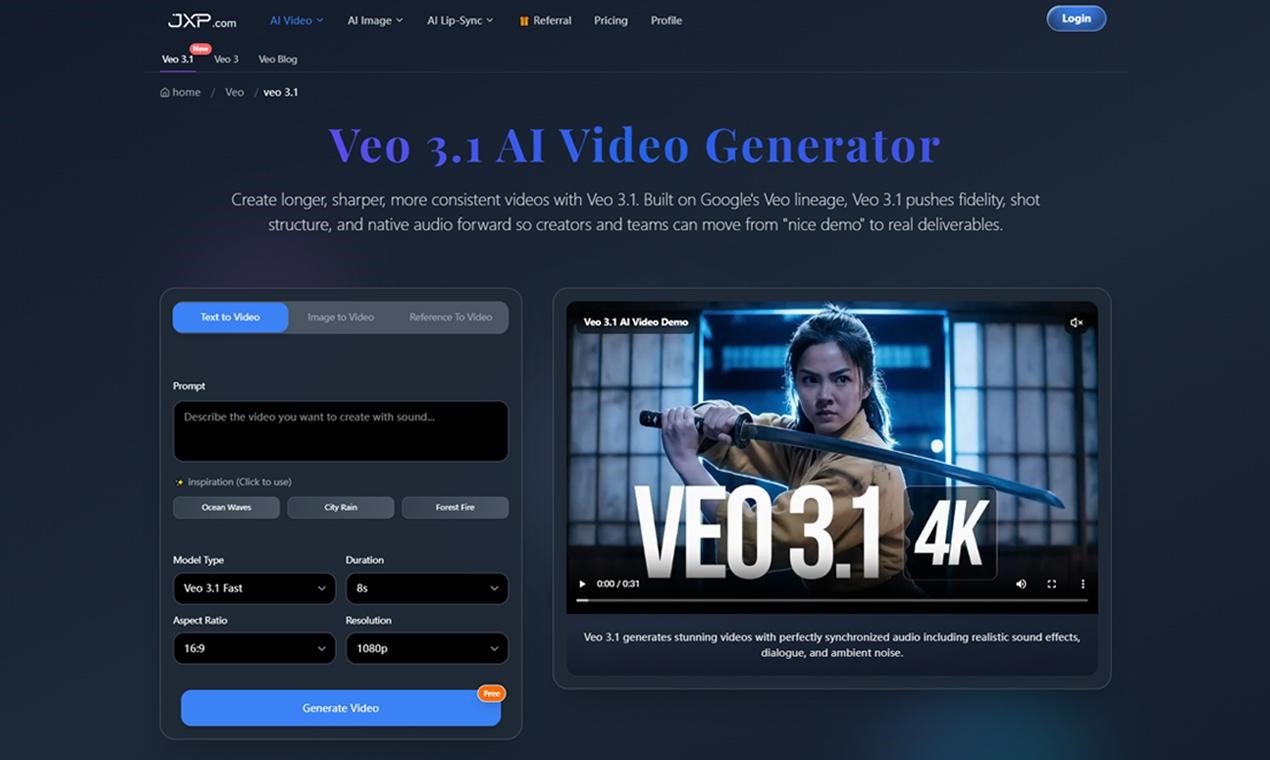
Have you ever tried an AI video generator, liked the first frame, and then watched the clip drift away from what you actually wanted? The product changes shape, the camera moves strangely, or the audio feels like it was added after the fact.
That is the problem I had in mind when I looked at Veo 3.1. I was not looking for another tool that only makes impressive demos. I wanted to see whether it could help with the more practical side of video creation: keeping a scene consistent, giving the camera clearer direction, and producing short clips that feel useful for real content.
The First Thing That Stood Out
The most useful part of Veo 3.1 is that it does not depend only on a written prompt. You can start with text, but you can also guide the result with image references and clearer scene direction. That matters because prompts alone can be too vague when you need a product, character, setting, or visual style to stay recognisable.
For example, instead of writing “create a product video”, I would write something closer to a mini brief: a clean desk setup, soft daylight, a slow camera push-in, the product staying centred, and a close-up detail shot at the end.
That approach feels closer to directing a clip than simply asking for one. It also makes the result easier to review because you know what you were trying to achieve.
Why Reference Control Matters
Most AI video tools can surprise you. Fewer tools are helpful when you need consistency.
This is where Veo 3.1 AI Video Generator feels more practical. The reference-based workflow is useful when you already have a product image, a visual concept, or a scene style in mind. Instead of hoping the model guesses correctly, you can give it more context from the start.
For marketers, this could help when testing different campaign ideas around the same product. For creators, it can support a more consistent look across short-form posts. For educators or trainers, it can help make explainer clips feel connected rather than randomly generated.
The point is not that every output becomes perfect. It is that the tool gives you a better way to guide the result before you spend time editing around mistakes.
Audio Sync Is Not A Small Detail
One thing I appreciated is that Veo 3.1 treats audio as part of the clip, not just something to add later. It supports native audio generation, including dialogue, ambient sound, and effects, along with improved lip-sync for talking scenes.
That matters more than it may sound. A video can look polished but still feel unfinished if the sound does not match the movement. A presenter clip needs the mouth movement to feel believable. A street scene needs the right background atmosphere. A product reveal can benefit from subtle effects that follow the action.
When audio and visuals are planned together, the clip feels closer to a complete draft. That is especially helpful for social videos, training clips, explainers, and quick campaign concepts where timing matters.
Longer Clips Make It Easier To Tell A Small Story
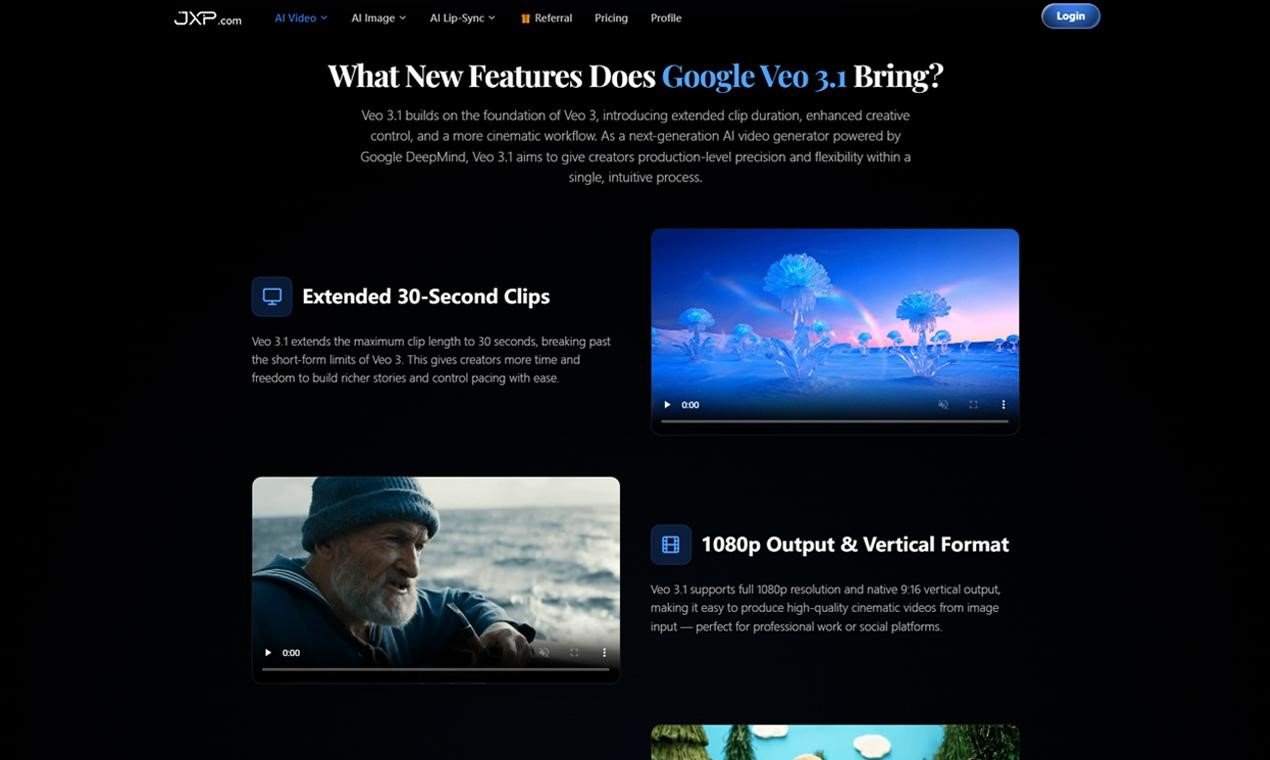
Another reason I found Veo 3.1 useful is the longer clip length. It can support videos up to 30 seconds, which gives creators more room than a very short visual sample.
That extra time changes the kind of content you can make. A product teaser can open with context, move into the main reveal, and end on a close-up. A training video can show one action clearly. A social clip can have a hook, a small development, and a clean finish.
Not every idea needs 30 seconds, of course. Shorter clips are often better for fast platforms. But having the option makes the tool more flexible, especially when you are trying to create something with a beginning and an ending.
Thinking Like A Director Helps
The biggest lesson from using tools like this is that the prompt should not be a wish. It should be direction.
I would suggest describing the subject, setting, action, camera movement, lighting, mood, and ending. If the clip needs multiple moments, write them in order. A simple structure such as “wide shot, slow push-in, close-up finish” can make a big difference.
This is also where Veo 3.1 fits better into a real workflow. It is not only for generating a random clip. It can be used to test a visual idea before making a final creative decision.
Where I Would Actually Use It
I would use Veo 3.1 for social media drafts, product concepts, training visuals, short explainers, campaign mockups, and mood tests. It feels especially useful at the stage where you need to show an idea quickly but do not yet need a full production.
A small business could use it to explore product video directions before planning a shoot. A creator could test several visual hooks for TikTok, Instagram Reels, or YouTube Shorts. A training team could draft simple instructional clips with clearer pacing and audio.
For agencies or in-house marketing teams, the value is speed. Instead of only talking about an idea, you can create a visual draft that helps the team react, refine, or move on.
What I Would Still Check Carefully
I would not treat AI video as a one-click final answer. Even with stronger controls, the result still needs a human review. I would check whether the product looks right, whether the scene remains consistent, whether the audio matches the movement, and whether the final clip suits the platform.
This is especially important for brand content. A clip should not just look impressive. It should feel intentional, accurate, and appropriate for where it will be published.
Final Thoughts
The reason Veo 3.1 feels useful is not simply that it generates AI video. The useful part is the level of control around references, scene direction, audio sync, longer clips, and 1080p output.
For me, that makes it less of a novelty tool and more of a practical creative assistant. It can help turn a rough idea into a video draft quickly, while still leaving room for human judgement.
If you want to test Veo 3.1’s multi-shot and audio-sync features, it is a good place to start building your first AI video concept.

